Booking Help – How to Book a Course

If you are not sure how to book, follow the steps below. If you get stuck, contact us and we will help you complete your booking.

If your booking isn’t working, try these quick fixes first:

  • Refresh the page and try again.

  • Try a different browser (Chrome/Safari) or an incognito/private window.

  • Disable any popup/content blockers for this site.

Ready to book? Open our course list and choose your date and location.

Step 1 – Find your course

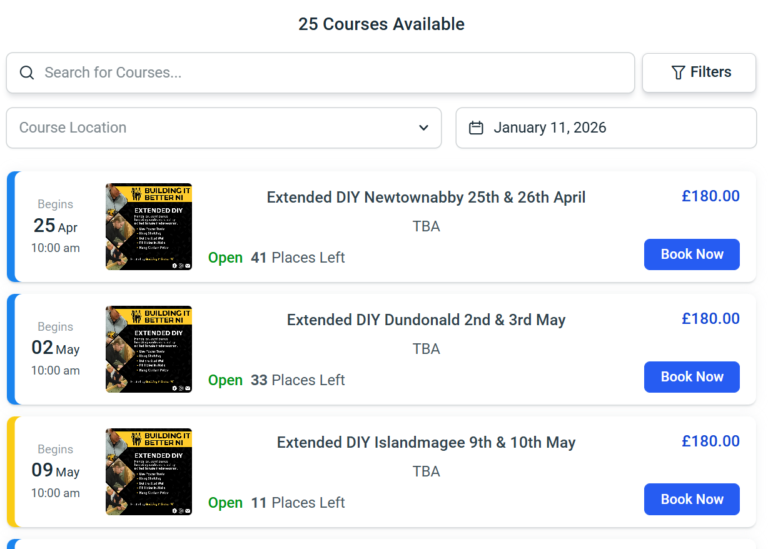
Use Search for your town/course name, or Filters to narrow by date and location.

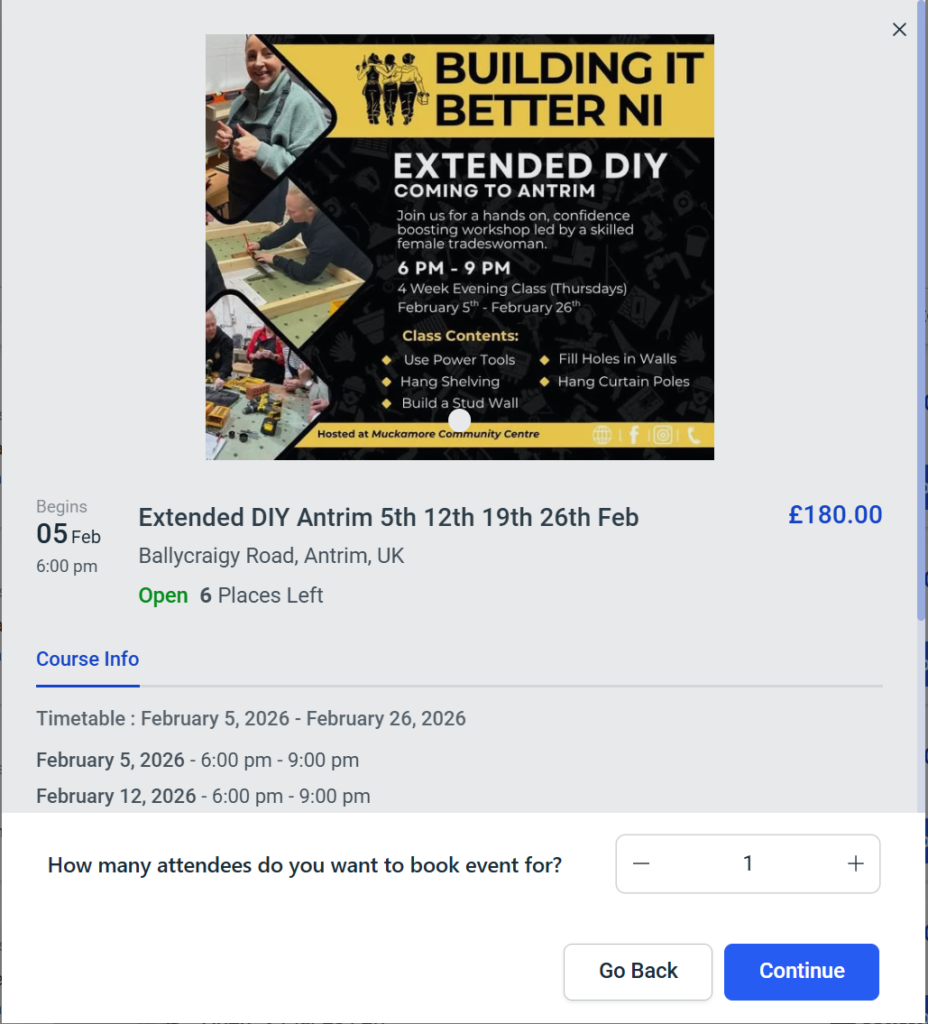
Step 2 – Click “Book Now”

Select your course date, then click Book Now on the course card to begin booking.

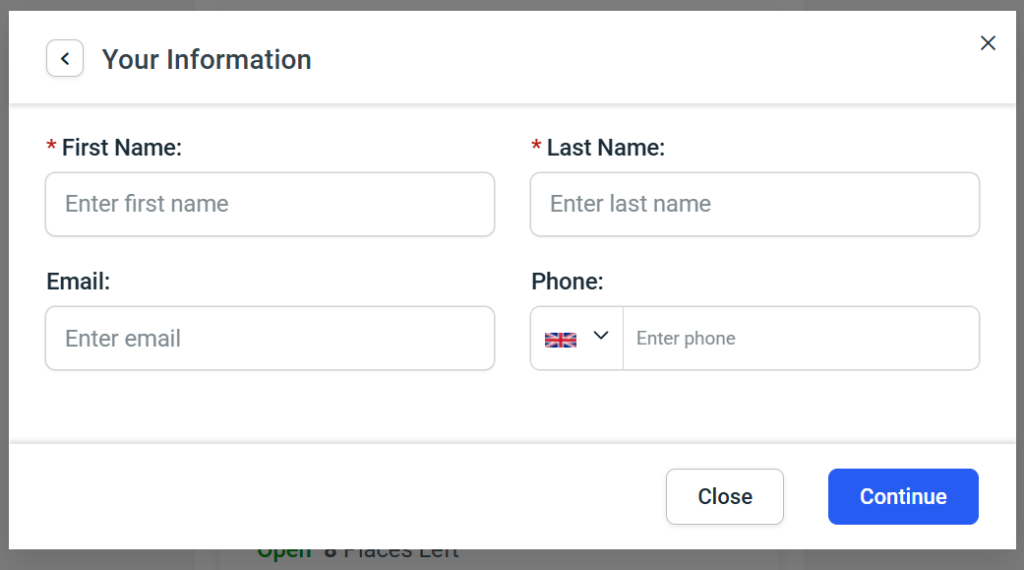
Step 3 – Enter your details

Enter your details and confirm your email address so we can send your booking confirmation.

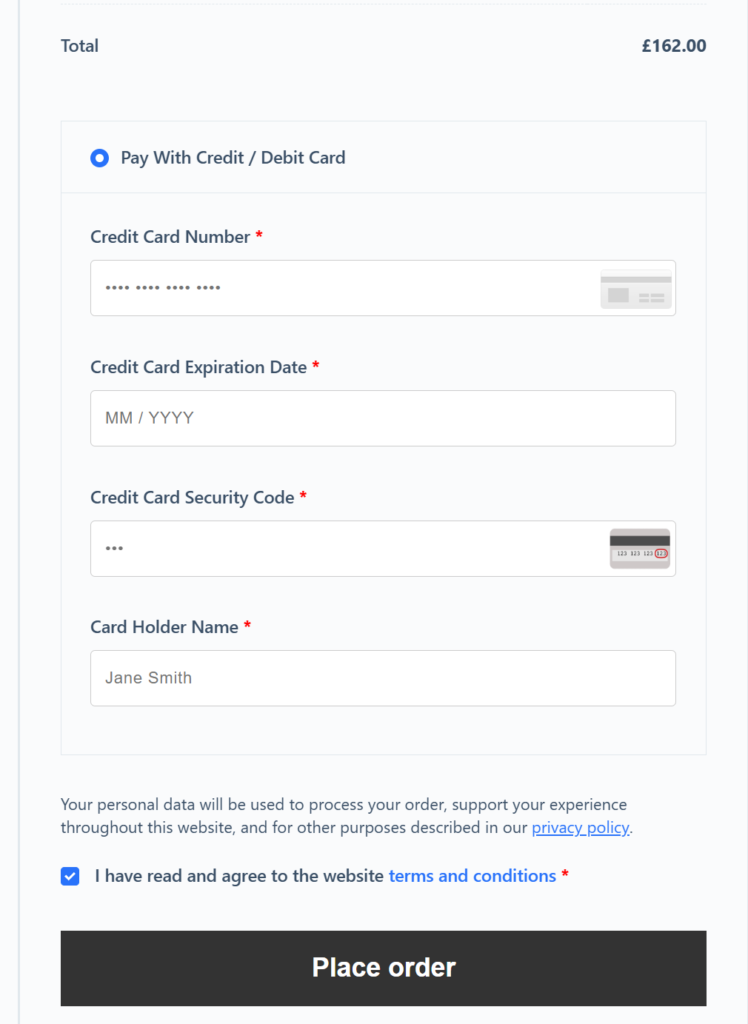
Step 4 – Pay securely to confirm your place

Complete payment to confirm your booking. You’ll receive a confirmation email straight away with your booking details.

Common booking issues (quick fixes)

I can’t find my course
  • Use Search (town/course name) and check Filters (date/location).

  • Clear filters and refresh.

  • Codes are case-sensitive.

  • Some codes are limited to the first 5 bookings per event and stop once used.

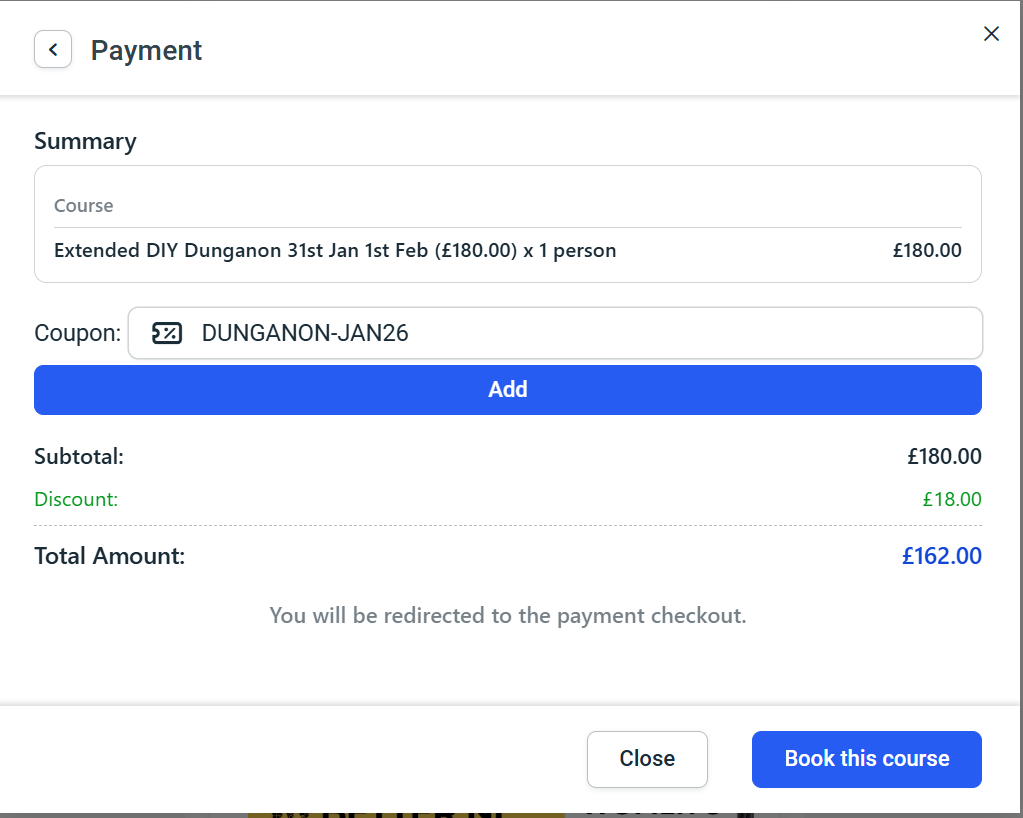
  • Enter the code at checkout before paying. and click on Add

  • Cannot be used with other offers.

  • Retry once (verification can time out).

  • Try another card or browser/device.

  • If your bank shows a pending charge, contact us before paying again.

  • Check spam/junk and Promotions.

  • Wait 5 minutes and search for “buildingitbetterni”.

  • If still missing, contact us with your name + email used + booking date.

After payment completes, your place is confirmed and you’ll receive a confirmation email with your booking details. If you don’t receive it within 5 minutes, check spam/junk and then contact us.The email address you gave may have an error in the spelling and we will be able to correct it. Its needed to be able to log in and view your orders in buildingitbetterni.com/Customer-panel

Discount codes must be entered at checkout before payment.
i.e 10% off offers are limited (for example, first 5 bookings per event) and stop automatically once used.
Discounts cannot be used with any other offer.

Dont forget to click on the Add button to activate the coupon. this will ensure you avail the offer if still available. 

Booking screenshots – what to expect

Filters can be applied to find your date or location. Click Book now for the course you have selected
The final payment page. Make sure all your  contact details are correct and dont forget to view and tick the “I have read and agree to the website Terms and Conditions tick box. Click on Place Order 

Still having problems then call our support line.

Ready to book? Open our course list and choose your date and location.